A kosaram
0
MÉG
5000 Ft
a(z) 5000Ft-os
szállítási
értékhatárig
Ginop popup ablak bezárása

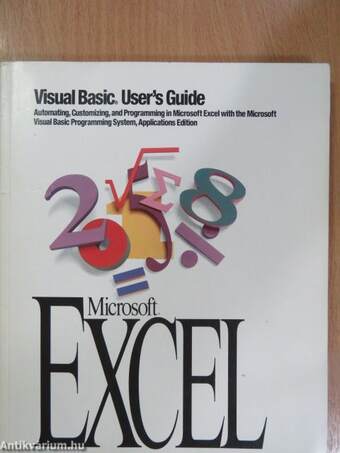
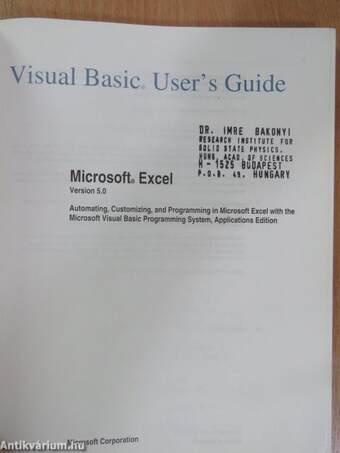
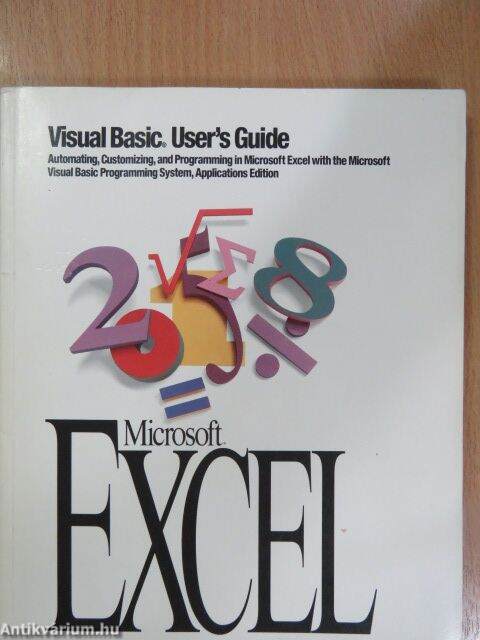
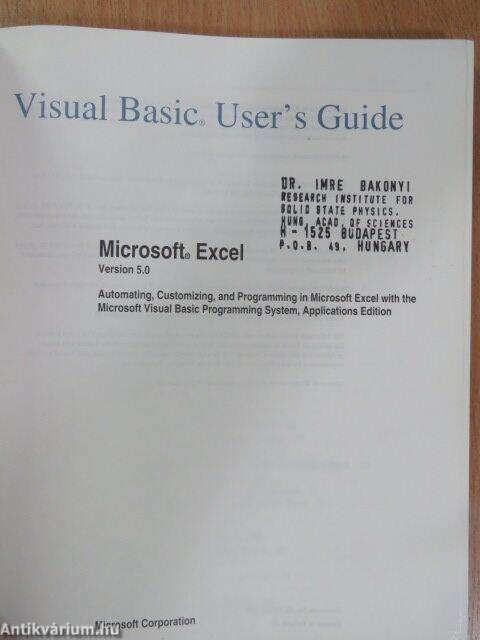
Visual Basic User's Guide

Microsoft Excel Version 5.0/Automating, Customizing, and Programming in Microsoft Excel with the Microsoft Visual Basic Programming System, Applications Edition


Kiadó: Microsoft Corporation
Kiadás helye:
Kiadás éve:
Kötés típusa: Ragasztott papírkötés
Oldalszám: 344 oldal
Sorozatcím:
Kötetszám:
Nyelv: Angol  
Méret: 23 cm x 19 cm
ISBN:
Megjegyzés: Fekete-fehér ábrákkal.
Értesítőt kérek a kiadóról

A beállítást mentettük,
naponta értesítjük a beérkező friss
kiadványokról
A beállítást mentettük,
naponta értesítjük a beérkező friss
kiadványokról

Fülszöveg

Microsoft Corporation One Microsoft Way Red mond, WA 98052-6399 Getting Help in a Visual Basic® Modulé F1 To get Help about a property, method, statement, or other keyword, select the keyword, and then press F1 (Microsoft® Excel tor Windows™) or + l (Microsoft Excel for the Macintosh®). To browse the object libraries available to Visual Basic, click the Object Browser button. ms Object Browser Automating Tasks with the Macro Recorder You can quickly automate tasks and create custom commands using the Macro Recorder. When you start the Macro Recorder, Microsoft Excel records your keystrokes and mouse actions so that you can play them back later with a single keystroke or a push of a button. To record a macro C 1. From the Tools menu, choose Record Macro, and then choose Record New Macro. D ... Or click the Record Macro button on the Visual Basic toolbar. Record Macro 2. Type a name and a description of the macro, and then choose the OK button. 3. Carry out the actions you want to... Tovább

Fülszöveg

Microsoft Corporation One Microsoft Way Red mond, WA 98052-6399 Getting Help in a Visual Basic® Modulé F1 To get Help about a property, method, statement, or other keyword, select the keyword, and then press F1 (Microsoft® Excel tor Windows™) or + l (Microsoft Excel for the Macintosh®). To browse the object libraries available to Visual Basic, click the Object Browser button. ms Object Browser Automating Tasks with the Macro Recorder You can quickly automate tasks and create custom commands using the Macro Recorder. When you start the Macro Recorder, Microsoft Excel records your keystrokes and mouse actions so that you can play them back later with a single keystroke or a push of a button. To record a macro C 1. From the Tools menu, choose Record Macro, and then choose Record New Macro. D ... Or click the Record Macro button on the Visual Basic toolbar. Record Macro 2. Type a name and a description of the macro, and then choose the OK button. 3. Carry out the actions you want to record. stop Macro 4 oiick the Stop Macro button. After recording a macro, you can run it using the Macro command on the Tools menu, or you can assign it to a menu command, button, or other object. Vissza

Tartalom

Document Conventions xiii
Programming Style in This Manual xiv
A Note About Terminology xvi
Introduction 1
Getting Started 2
Where to Find Information About Visual Basic 2
How This Book Is Organized 2
Code Samples 3
Using Online Help 3
Information for Experienced Microsoft Excel Macro Developers 6
Chapter 1 Automating Repeated Tasks 9
How Macros Simplify Tasks 9
When to Record a Macro 10
The Recording Process 11
Recording a Macro 12
Running a Macro 14
Using the Visual Basic Toolbar 15
Making Your Macro Easier to Use 16
Adding a Macro to the Tools Menu 16
Assigning a Macro to a Button on a Sheet 16
Assigning a Macro to a Button on a Toolbar 17
Assigning a Macro to a Graphic Object 19
Changing the Macro Assigned to a Button or Graphic Object 20
Setting and Changing Macro Options 20
Controlling the Type of References You Record 21
Making Recorded Macros Available All the Time 22
Tips for Using the Macro Recorder 23
Chapter 2 Editing Recorded Macros 25
Viewing and Modifying a Recorded Macro 25
Reading Visual Basic Code 27
Scrolling and Moving the Insertion Point 28
Editing Code 29
Recording Code into an Existing Macro 35
Inserting Text from a File 36
Enhancing a Macro with Visual Basic Features 36
Changing the State of an Option 36
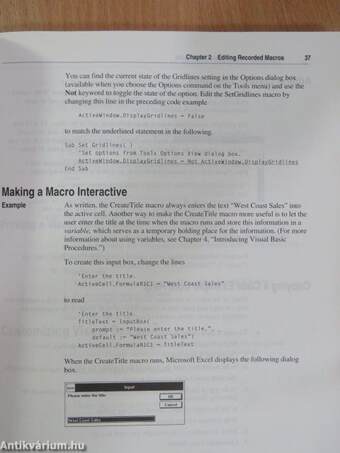
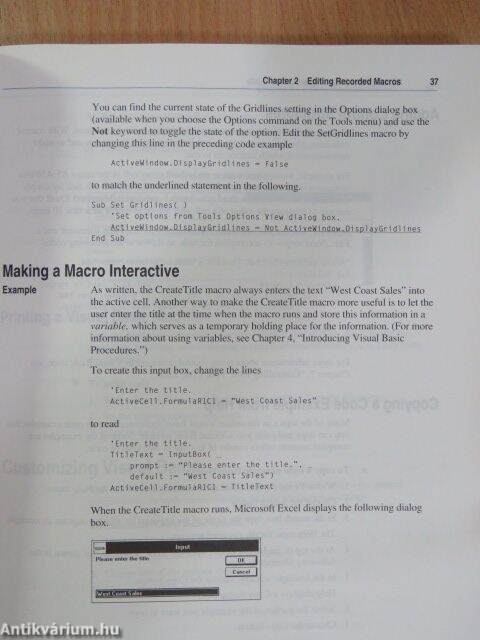
Making a Macro Interactive 37
Adding Control Structures 38
Copying a Code Example from Help 38
Printing a Visual Basic Modulé 39
Customizing Visual Basic 39
Chapter 3 Creating User-Defined Functions 41
What a User-Defined Function Does 41
The Parts of a User-Defined Function 42
Creating a User-Defined Function 45
Putting Your User-Defined Function to Work 46
Making Your User-Defined Functions Easier to Find 47
Learning More About User-Defined Functions 48
Chapter 4 Introducing Visual Basic Procedures 49
What Is a Visual Basic Procedure? 49
Parts of a Procedure 51
How Procedures Work Together to Complete a Complex Task
How You Call Procedures 56
How You Use Parentheses in a Procedure 57
Organizing Procedures and Modules in Workbooks 58
How a Modulé Is Organized 59
Calling Procedures in Specific Modules 60
Calling Procedures in Another Workbook 61
Chapter 5 Working with Objects in Visual Basic 65
Introduction to Objects 65
Controlling Objects with Their Properties 67
Referring to Properties 68
Using Property Values in Procedures 68
Common Properties 70
Performing Actions with Methods 71
Using Methods in Code 71
Working with a Collection of Objects 73
Methods That Return Objects 73
Creating a New Object in a Collection 74
Common Collections 75
Objects as Containers for Other Objects 75
Using Containers in Your Procedures 76
vi Contents
Chapter 7 Controlling How Your Code Runs 139
Running Portions of Code Based on Conditions (Decision Making) 139
If...Then 140
If...Then...Else 140
Select Case 141
Running the Same Code Several Times (Looping) 143
Do...Loop 143
For...Next 145
For Each...Next 146
Piacing One Control Structure Inside Another (Nesting) 148
Exiting Control Structures and Procedures 148
Exiting a Control Structure 149
Exiting a Procedure 150
Chapter 8 Testing and Debugging Your Code 153
How Debugging Tools Help 153
Kinds of Errors 154
Using Break Mode 155
Entering Break Mode at a Problem Statement 155
Using a Breakpoint to Selectively Halt Execution 156
Using Stop Statements to Enter Break Mode 158
Using the Debug Window 158
Running Selected Portions of Your Code 159
Using Step Into 160
Using Step Over 160
Using the Calls Dialóg Box 161
Tracing Nested Procedures 162
Monitoring Data with Watch Expressions 162
Adding a Watch Expression 162
Editing or Deleting a Watch Expression 163
Using Instant Watch 164
Testing Data and Procedures with the Immediate Pane 165
Printing Information in the Immediate Pane 165
Executing Commands in the Immediate Pane 166
Using the Immediate Pane More Effectively 168
Simplifying the Debugging Process 168
Tips for Debugging 168
Contents vii
Chapter 9 Handling Errors and Error Values 171
What Happens When You Don't Intercept Errors? 171
Preventing Your Code from Halting or Acting Unpredictably 172
The Process of Trapping Errors 174
How Visual Basic Searches for an Error-Handling Routine 177
Turning Off Error Handling 17 8
Creating Error Values That Don't Interrupt Your Code 179
What an Error Value Is 179
How You Create Error Values 179
Using the Built-in Error Values of Microsoft Excel 181
Advanced Error-Handling Techniques 182
Simulating Run-Time Errors 182
Minimizing Code Size by Handling Errors in a Central Location 183
Handling Errors with Inline Code 185
Handling User Interrupts 186
Chapter 10 Controlling and Communicating with Other Applications 189
Ways to Work with Other Applications 189
Using OLE Automation with Applications 190
Creating and Getting Objects 191
Viewing Applications and Objects 194
Adding References to Applications and Workbooks 195
How Visual Basic Searches References 196
Using an Application's Objects 197
Using OLE Automation with DLLs 199
Declaring DLLs 200
Calling DLL Procedures 202
Using Linked and Embedded Objects 203
Getting Existing Linked and Embedded Objects 205
In serting an Embedded Object 205
Inserting a Linked Object 206
Performing Actions on Linked and Embedded Objects 206
Editing Linked and Embedded Objects 207
Updating Linked Objects 207
Deleting Linked and Embedded Objects 208
Using Linked and Embedded Objects with OLE Automation 208
viii Contents
Using DDE 209
Starting DDE 210
Getting Text and Numbers 210
Sending Text and Numbers 211
Sending Commands 211
Ending DDE 211
Working with DDE Links 212
Handling Errors 213
Sending Keystrokes 214
Switching to Other Applications 214
Specifying Special Characters 215
Working from Other Applications 215
OLE Automation 216
Linking and Embedding 216
DDE 217
Chapter 11 Controls and Dialóg Boxes 219
Enhancing Your Application with Predefined Dialóg Boxes 220
Getting Information from the User 220
Displaying Information with the MsgBox Function 222
Piacing Controls on a Worksheet or Dialóg Sheet 223
Using Custom Controls in Your Application 224
Creating a Dialóg Sheet 224
Piacing Controls 225
Selecting Controls 227
Sizing, Moving, and Deleting a Control 227
Setting the Properties of a Control 228
Linking Controls to Worksheets 229
Assigning Code to Controls and Dialóg Boxes 232
Displaying a Custom Dialóg Box 234
Creating an OnAction Event Handler 235
Displaying a Built-in Dialóg Box 236
Getting Information from a Dialóg Box 236
Modifying Controls While a Dialóg Box Is Visible 237
Hiding a Custom Dialóg Box 239
Contents ix
Chapter 12 Menüs and Toolbars 241
Modifying the Menuing System with the Menu Editor 242
Creating Menuing Items 243
Deleting, Restoring, and Renaming Menuing Items 247
Where the Menuing System Is Stored 248
Managing Menüs with Visual Basic 249
Working with Menu Bars 249
Working with Menüs 251
Working with Menu Items and Submenu Items 253
Working with Shortcut Menüs 255
Managing Toolbars and Toolbar Buttons with Visual Basic 256
Working with Toolbars 256
Working with Toolbar Buttons 259
Attaching Toolbars to Workbooks 262
Where Toolbars Are Stored 263
Chapter 13 Creating Automatic Procedures and Add-in Applications 265
Creating Automatic Procedures 266
Auto_Open Procedures 266
Auto_Close Procedures 266
Using Defined-Name Automatic Procedures 267
Opening a Workbook Automatically When Microsoft Excel Starts 268
Creating OnEvent Procedures 268
OnTime Method 269
OnSheetActivate and OnSheetDeactivate Properties 271
OnWindow Property 272
OnKey Method 273
OnCalculate Property 273
OnEntry Property 274
OnData Property 275
OnRepeat and OnUndo Methods 275
Creating an Add-in Application 276
Converting a Workbook to an Add-in Application 276
Controlling Add-in Applications with Visual Basic 278
Putting It All Together 279
Sample Application 279
Appendix A Writing Code for International Use 281
Making Your Code Transportable with Object Libraries 281
Choosing a Locale in Which to Write or Edit Visual Basic Code 282
Working in Multiple Locales 283
Installing and Registering Object Libraries 283
Distributing Object Libraries 284
Names of the Object Library Files 285
Obtaining New Object Library Files 286
Running Your Code in Other Language Environments 286
Writing International Code That Controls Multiple Desktop Applications 288
Guidelines for Writing Transportable Visual Basic Code 289
Processing User-Provided Worksheet Formulas 289
Using Conversion Functions 290
Displaying Information with Locale-Aware Functions and Statements 291
Working with Local Language Text in Your Code 291
Other Considerations for Writing Transportable Visual Basic Code 293
Appendix B Switching from the Microsoft Excel 4.0 Macro Language 295
Information for Users of Microsoft Excel 4.0 Macros 295
Recording Macros in Visual Basic 296
Acting Directly on Objects in Visual Basic 296
Variables: More Powerful Than Names 297
Using Worksheet Functions in a Procedure 297
Using Your Existing Macros in a Procedure 297
New Tools to Make Debugging Easy 298
Visual Basic Equivalents for Common Macro Functions 298
Creating Custom Commands and Dialóg Boxes with Visual Basic 299
Creating Custom Commands 299
Displaying Built-in Dialóg Boxes 300
Creating and Displaying Custom Dialóg Boxes 300
Creating Add-in Applications 300
Appendix C Displaying Custom Help Topics 303
Creating a Help System 304
Displaying Help Topics 304
Using the Help Method 305
Custom Help for Dialóg Boxes 305
Getting More Information About the Microsoft Windows Help Compiler 306
Appendix D Toolbar Buttons in Microsoft Excel
Auditing Category 307
Charting Category 308
Custom Category 309
Data Category 310
Drawing Category 311
Edit Category 313
File Category 314
Formatting Category 315
Forms Category 316
Formula Category 317
Macro Category 319
Text Formatting Category 320
TipWizard Category 321
Utility Category 322
Index 325
Megvásárolható példányok

Nincs megvásárolható példány
A könyv összes megrendelhető példánya elfogyott. Ha kívánja, előjegyezheti a könyvet, és amint a könyv egy újabb példánya elérhető lesz, értesítjük.

Előjegyzem